Chapter 2: Creating Nuxt.js Applications
We will first create two Nuxt projects using their CLI tool. This will demonstrate how quick and easy it is to get started with customized Nuxt.js applications.
Following these first two apps, we will create a third project, which we'll use to begin learning the basics of developing and customizing Nuxt.js applications.
There are two important items to note before continuing:
- For version 1.0 and higher of Nuxt.js, you will need at least version 8.0.0 of Node. Check your node version by running:
node -v
- If you do not have
yarninstalled or do wish to use it, use can usenpminstead. For example:
# Instead of:
yarn dev

# Use this:
npm run dev
Getting Setup
There are three approaches to get started using Nuxt.js.
- Adding Nuxt as a dependency and setting everything up manually
- Using
vue-cli - Using
create-nuxt-app
We are going to use create-nuxt-app for now. It works as a CLI tool that will walk us through setting up our project by offering options along the way.
Before we get started with our first project, install it with the following:
yarn add -g create-nuxt-app

# Or with npx (shipped by default since NPM 5.2.0)
npm install -g create-nuxt-app
Creating a Nuxt App
Now that we have create-nuxt-app installed globally, we're going to walk through the steps of using it to create our first app.
Since we will have multiple projects, we'll want a directory to store them. That directory will be
nuxt-quickstart. Each app will live in its own directory within thenuxt-quickstartdirectory.
Nuxt App 1
- Create a directory called
nuxt-quickstartand then move into that directory
mkdir nuxt-quickstart && cd nuxt-quickstart
- Let's create our first Nuxt project together. We'll call it
app1.
yarn create nuxt-app app1
# Or With npx
npx create-nuxt-app app1
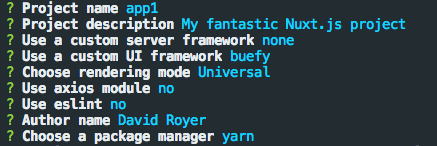
- This will run you through options and to follow along, choose the options so that your result is as follows:
- Once completed,
cdintoapp1
cd app1
- Inside the
app1directory, we can run our development server:
yarn dev
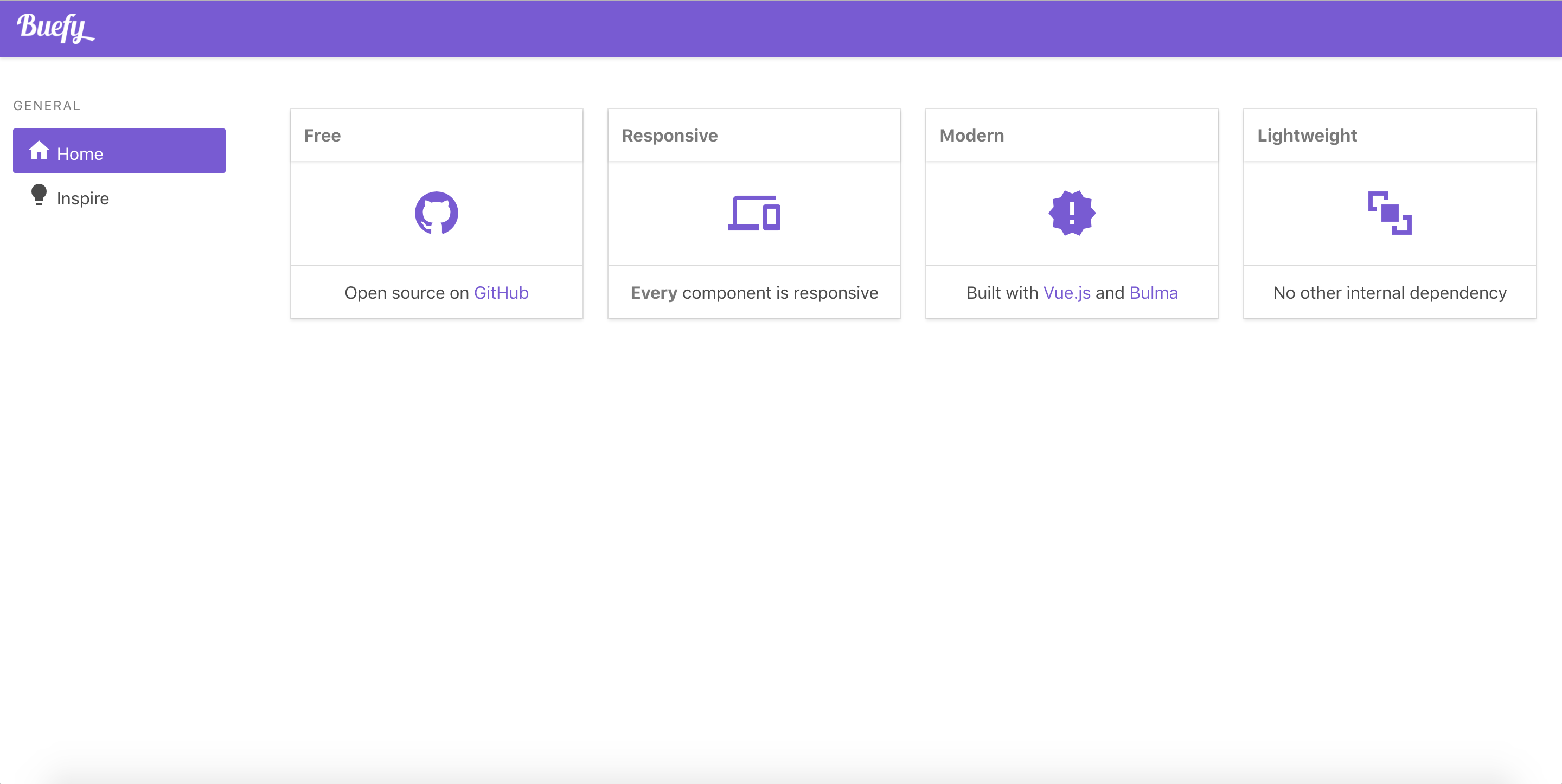
- View the result at localhost:3000. It should look similar to the following:
- Quit the development server
Nuxt App 2
Now lets create another app and choose different options. Be sure to quick the previous application if you have not done so already.
We follow the same process as before but will choose Vuetify as our framework.
From the nuxt-quickstart directory:
- Create your second application
yarn create nuxt-app app2
# Or With npx
npx create-nuxt-app app2
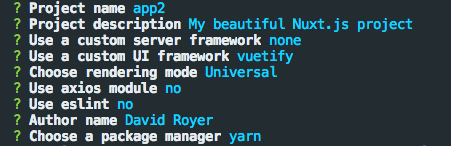
- This will run you through a set of options and choose accordingly so your result is as follows:
- Once completed,
cdintoapp2
cd app2
- Inside the
app2directory, we can run our developement server:
yarn dev
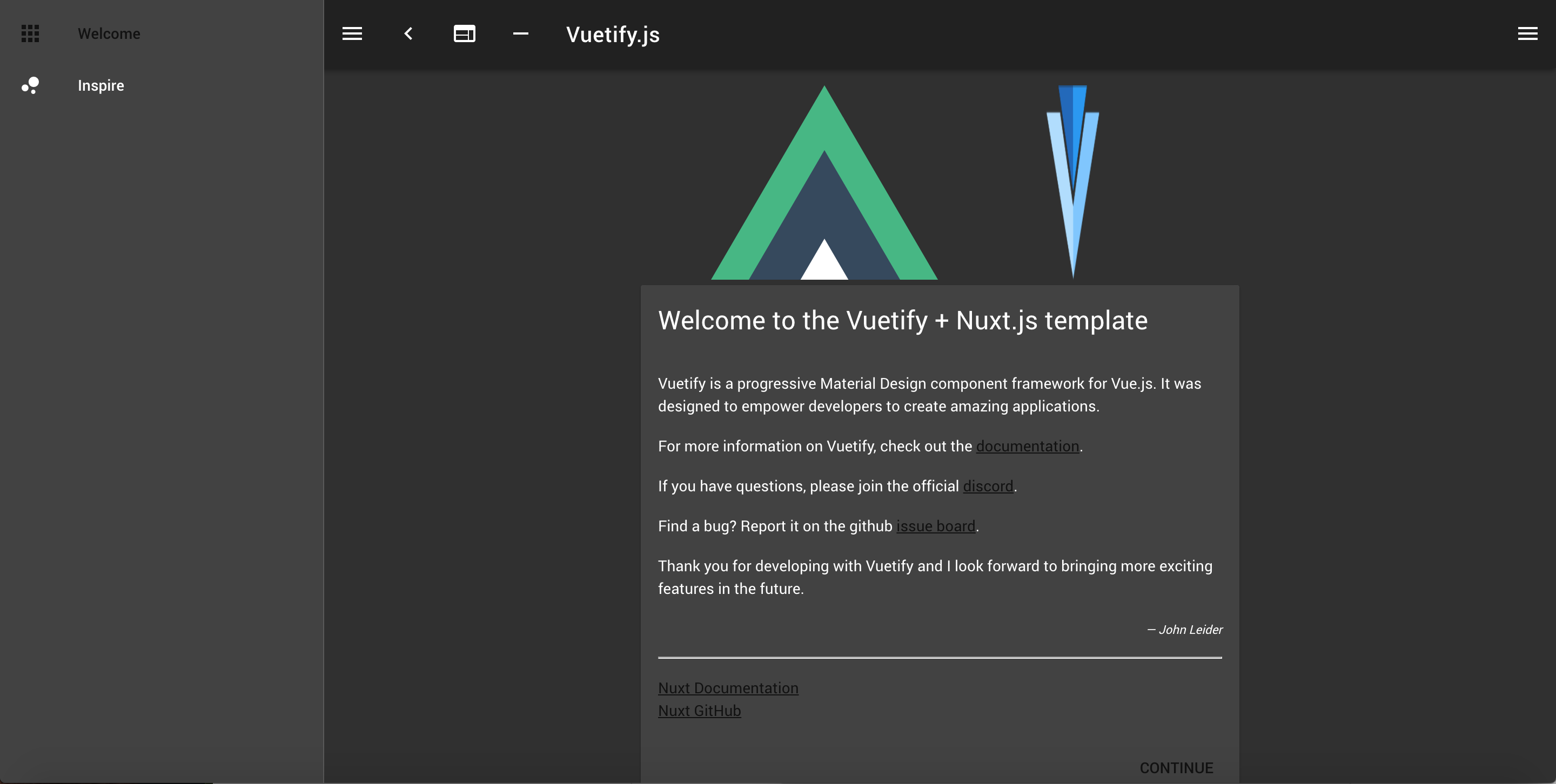
- View the result at localhost:3000. It should look similar to the following:
- Quit the development server
Nuxt App 3 - NuxtStrap
Now that we have gotten to sample using Nuxt with create-nuxt-app, lets create the app we'll use to begin building an application.
Our application will be called NuxtStrap, and we'll be using BootstrapVue as our custom UI framework which is a Vue version of Bootstrap.
Creating NuxtStrap
From the root of the nuxt-quickstart directory we'll create our newest application by following the same steps as before:
From the nuxt-quickstart directory:
- Create the application
yarn create nuxt-app nuxtstrap
# Or With npx
npx create-nuxt-app nuxtstrap
- This will run you through a set of options and choose accordingly so your result is as follows:
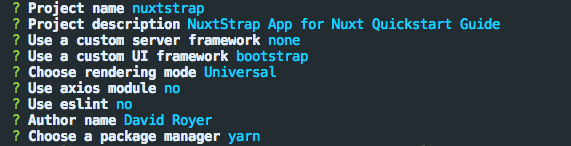
- Once completed,
cdintonuxtstrapand open it in your editor of choice.
cd nuxtstrap
- Inside the
nuxtstrapdirectory, we can run our development server:
yarn dev
- View the result at localhost:3000. It should look similar to the following:
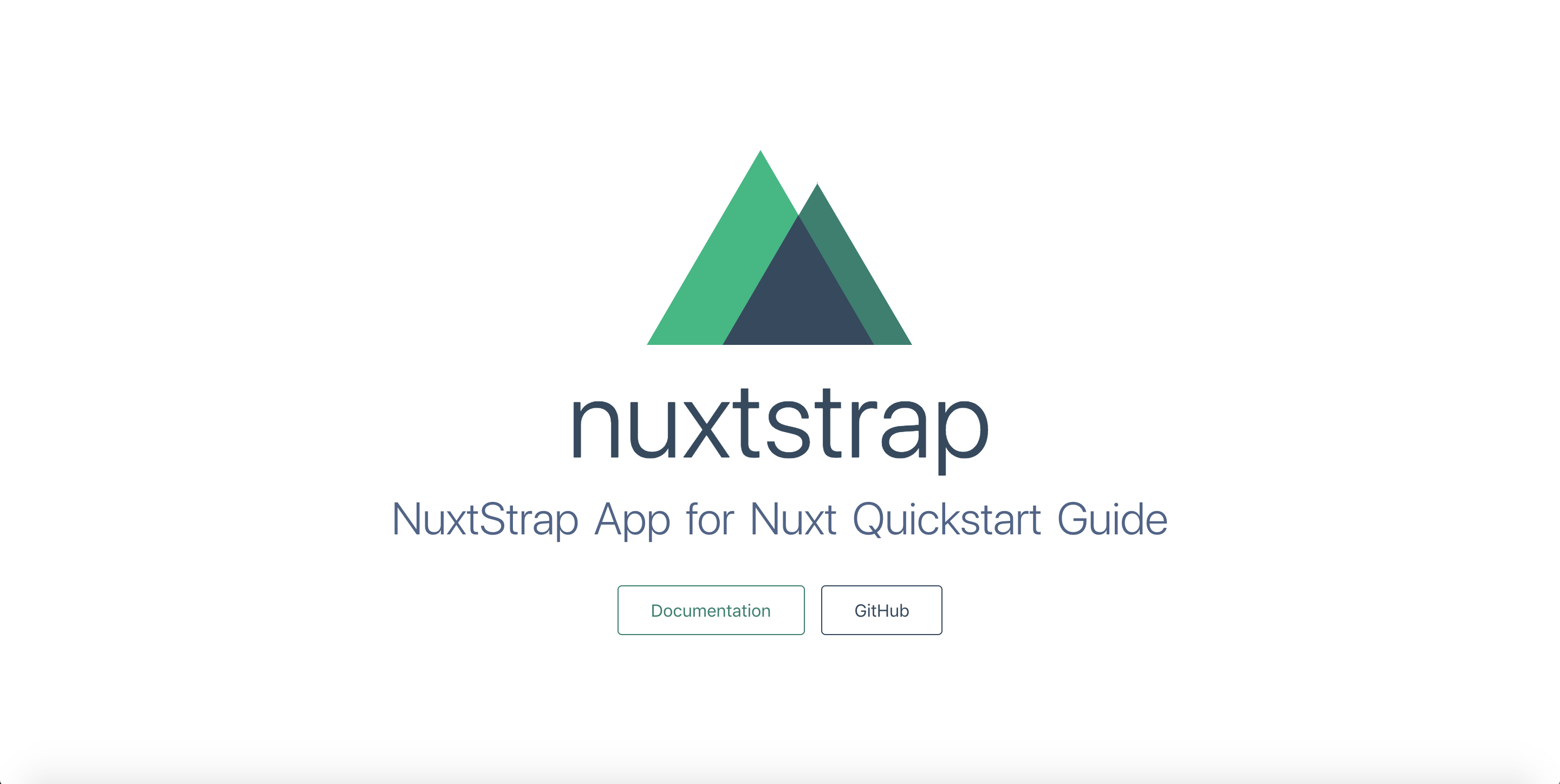
Now we're ready to begin building our application, and will be using NuxtStrap for the remainder of Chapter 2 to do so.
Project Architecture
Viewing our project, NuxtStrap, in an editor shows various files and folders already created.
You'll even see that inside each directory is a README providing helpful information about that directory.
Inside nuxt.config.js you'll see a property called modules that is an Array. By choosing BootstrapVue as our custom UI framework, it's already setup and ready for us to use.
It's important to understand that we could have just as easily set BootstrapVue ourselves inside the plugins directory. We could have created a file called bs-vue.js (or whatever we wanted), put the following code inside and registered it as a plugin in nuxt.config.js.
import Vue from 'vue'
import BootstrapVue from 'bootstrap-vue'

Vue.use(BootstrapVue)
This trivial step is taken care of though by using the module.
Adding Additional Routes via Pages Directory
We want 4 pages for our project:
- Home Page
- About Page
- Admin Page
- Login Page
Since we already have index.vue inside the pages directory, we're good for our home page but need to create the remaining three routes.
Do this by creating the following files inside the pages directory:
about.vueadmin.vuelogin.vue
While we didn't need to create an index.vue, we will be editing it. We are going to give each page the bare-minimum because we do not want to distract ourselves with matters outside the scope of this book. However, we will be adding to these pages as we move through this chapter and begin integrating additional functionality.
Home Page (index)
Place the following in index.vue:
<template>
  <div>
    <h1 class="title">Home Page</h1>
    <b-button variant="primary" @click="modalShow = !modalShow">
      Open Modal
    </b-button>
    <b-modal v-model="modalShow" title="Nuxt Quickstart">
      <p class="my-4">Some modal content here...</p>
    </b-modal>
  </div>
</template>

<script>
export default {
  data: () => ({
    modalShow: false
  })
}
</script>
About Page
Place the following in about.vue:
<template>
  <div>
    <h1 class="title">About Page</h1>
    <p>This is where you would put some content about the project</p>
  </div>
</template>
Admin Page
Place the following in admin.vue:
<template>
  <div>
    <h1 class="title">Admin Page</h1>
    <p>Your admin settings go here</p>
  </div>
</template>
Login Page
Place the following in login.vue:
<div>
  <h1 class="title">Login Page</h1>
  <h2 class="h5">Please Login</h2>
  <b-button variant="outline-secondary" size="lg">Login</b-button>
</div>
Adding Navigation
Now that we have multiple routes for our project, we need to setup navigation to test our routing by navigation between them.
We want our navigation to always be visible which means it needs to exist in our layout.
For right now, we'll place our navigation in default.vue file which exists inside the layouts directory.
At the time of this writing, the template for default.vue only consists of the following:
<template>
  <div>
    <nuxt/>
  </div>
</template>
We're going to place our navigation above the <nuxt/> component which results in our template for default.vue being:
<template>
  <div>
    <nav>
      <b-nav>
        <b-nav-item exact to="/">Home</b-nav-item>
        <b-nav-item to="/about">About</b-nav-item>
        <b-nav-item to="/admin">Admin</b-nav-item>
      </b-nav>
    </nav>
    <nuxt/>
  </div>
</template>
Understanding Our Navigation
We are using components provided by the BootstrapVue library. Nuxt provides the nuxt-link component which is often used for routing in Nuxt.js applications. It basically functions just as router-link from VueRouter though.
With that in place as well as our newly created routes, we can now test navigating between routes by running our project in dev mode:
yarn dev
If everything was setup correctly, you should be able to navigate between your 3 routes.
Adding Page Transitions
To begin taking advantage of Nuxt's built in transitions, all we need to do is add a few lines of CSS.
By default, Nuxt uses the transition name of page, This is attribute we normally need to set on our own like so:
<transition name="some-name">
With Nuxt however, we just need to add some CSS to being experiencing silky-smooth client-side routing.
Add the following to default.vue to begin taking advantage of Nuxt's built-in transition capabilities.
<style>
  .page-enter-active, .page-leave-active {
    transition: opacity .4s;
  }
  .page-enter, .page-leave-active {
    opacity: 0
  }
</style>
Setting Up Assets
Any assets such as images, css, scss, ect., that you want being processed through Webpack go inside the assets directory.
If you there are items you do NOT wish to run through Webpack then you should place them in the static directory. This will simply be copied over to the proper directory when Nuxt's build command is ran: yarn build
Our Style Assets
We need to do 3 things to get our style assets setup
- Add necessary dev dependencies
- Setup a new directory and file(s) for our styles
- Inform Nuxt to use the file for our project
Style Dev Dependencies
We are going to use the SCSS syntax of Sass for our styles.
We need to install a few dev dependencies to do this through. We'll need sass-loader and node-sass. Without this, the .scss files will cause errors.
Run the following inside the root of the project:
yarn add -D node-sass sass-loader
Our Style Files
Next, inside the assets directory create a new directory of styles with app.scss inside of it.
Note: This directory could be named anything you like such as
scssinstead ofstyles. While I recommend you stick with the name of styles for now to ease the following-along process, you should feel free to use your preferred naming convention for your own projects.
Additional Styles
While it perfectly fine to write styles inside our Vue component files, and I often do this myself, there is another way which is the approach we'll use here.
Within the style tags inside our .vue files, we can set the src attribute to the location of one of our scss files. It looks like this:
<style src="@/assets/styles/your-vue-component.scss"></style>
Let's setup a few files we'll use later. Create a components directory inside of the styles directory with the following inside:
app-header.scssapp-footer.scss
We'll add the some basic styles to these files, so they'll be ready when we create these components.
app-header
Place the following in app-header.scss
header {
  display: flex;
  flex-flow: row wrap;
  align-items: center;
  justify-content: space-between;
  margin-top: 1em;

  nav {
    margin-left: auto;
  }

  .nav {
    align-items: center;

    &-link {
      &.active {
        &:focus,
        &:hover {
          background: #212529c4 !important;
          color: white;
          border-radius: 5px;
        }
      }
    }
  }
}
app-footer
Place the following in app-footer.scss
footer {
  display: flex;
  justify-content: space-around;
  flex-flow: row wrap;
  align-items: center;
  padding: .5em;
  background: #eee;
}
Adding Style Resources To Our Config
We need to let Nuxt know that we want to use these styles inside app.scss. We do that by using the provided css property inside nuxt.config.js, which is an Array so multiple resources can be added.
Add the following to nuxt.config.js inside your config object:
css: [
  '@/assets/styles/app.scss'
]
Image Assets
Any images inside the assets directory or any subdirectory within it will be processed by Webpack.
For our project, lets create an images directory within our assets directory to use for our images. Pick an image to use and place it in the new assets/images directory.
My image is named image-example.jpg. To reference it within a .vue file I can do the following:
<img class="hero-image" src="@/assets/images/image-example.jpg" alt="Image Example">
Lets use our new image in index.vue. You'll need to adjust your code accordingly to match your image's name and file type. Otherwise the template part of index.vue should now be the following:
<template>
  <div>
    <h1 class="title">Home Page</h1>
    <img class="hero-image" src="@/assets/images/image-example.jpg" alt="Image Example">
    <b-button variant="primary" @click="modalShow = !modalShow">
      Open Modal
    </b-button>
    <b-modal v-model="modalShow" title="Nuxt Quickstart">
      <p class="my-4">Some modal content here...</p>
    </b-modal>
  </div>
</template>
Components Directory
Nothing takes the fun out of a project quicker than feeling overwhelmed by its disorganized. Utilizing the components directory to break our code into smaller pieces helps to avoid this unpleasantness.
We will use it to store parts of our UI that we want to render across all pages. We will create the following components in this order:
- AppNav
- AppHeader
- AppFooter
AppNav
We're going to take the code we've already written inside default.vue for our navigation and move it into it's own component file.
Create the file AppNav.vue inside the components directory.
Take the navigation code and place it in our new file.
In addition to this component having the HTML for our navigation, we will set the name property of our component to AppNav
Your new AppNav component should look as follows:
<template>
  <nav>
    <b-nav>
      <b-nav-item exact to="/">Home</b-nav-item>
      <b-nav-item to="/about">About</b-nav-item>
      <b-nav-item to="/examples">Examples</b-nav-item>
      <b-nav-item to="/admin">Admin</b-nav-item>
    </b-nav>
  </nav>
</template>

<script>
  export default {
    name: 'AppNav'
  }
</script>
AppHeader
We will follow a similar process for our header component but will need to provide some additional customization. We're going to use our newly created AppNav file inside our AppHeader file.
First, create the file AppHeader.vue inside the components directory. Secondly add the following to the component.
<template>
  <header>
    <h1>NuxtStrap</h1>
    <AppNav/>
  </header>
</template>

<script>
import AppNav from '@/components/AppNav'

export default {
  name: 'AppHeader',
  components: {
    AppNav
  }
}
</script>
Now lets import this into our default.vue file inside the layouts directory.
Our default.vue file should now be as follows:
<template>
  <div>
    <AppHeader/>
    <nuxt/>
  </div>
</template>

<script>
import AppHeader from '@/components/AppHeader'

export default {
  components: {
    AppHeader
  }
}
</script>

<style src="@/assets/styles/components/app-header.scss" lang="scss"></style>
AppFooter
We'll setup our last component by creating the AppFooter file with the following:
<template>
  <footer>
    <p>Our Footer Component</p>
  </footer>
</template>

<script>
export default {
  name: 'AppFooter'
}
</script>

<style src="@/assets/styles/components/app-footer.scss" lang="scss" scoped></style>
In default.vue, import the new AppFooter component and update the components property to include it like we we did with the AppHeader component.
This results in the our default.vue layout file being:
<template>
  <div>
    <AppHeader/>
    <nuxt/>
    <AppFooter/>
  </div>
</template>

<script>
  import AppHeader from '@/components/AppHeader'
  import AppFooter from '@/components/AppFooter'

  export default {
    components: {
      AppHeader,
      AppFooter
    }
  }
</script>
Testing Our Styles
We are ready to test our asset modifications/additions now that we have taken care of the three necessary steps. Run your project in development mode to test it out and confirm everything is working properly.
Adding Meta For SEO
Nuxt is packaged with Vue-Meta which helps us with SEO by providing us with the ability to easily customize our application's meta information
There are a few places where this customization takes place.
We'll set our initial settings inside nuxt.config.js and then update the meta for each route inside our pages directory.
Project Meta Config
Open the nuxt.config.js inside your editor and locate the head property which is the one we'll be editing.
In many scenarios, you'd want this title property to be a combination of some text that is always present and text that is based on the current page being viewed.
If we were to leave everything with the default settings, this would not be possible. Our only option would be to overide that same title property in each page.
Fortunately another property is available inside the head config and it's called titleTemplate.
Go ahead and remove the line with the title property being used and replace it with the following:
titleTemplate: '%s - NuxtStrap',
Now whenever we set the head.title property inside one of our routes, it will be replace %s, which gives us the combination we were looking for.